

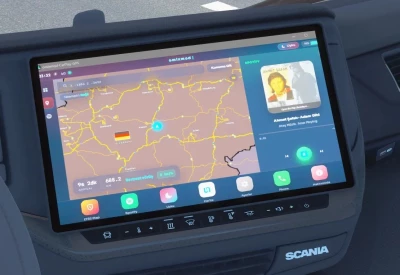


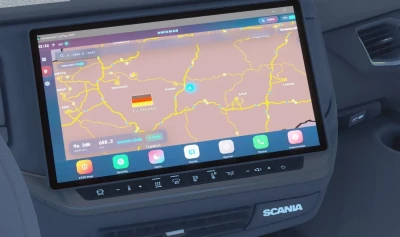
Setup guide
Goal: Set it up once, then simply launch START.bat each time. You only need to configure the Prism menu within the game during the initial setup.
Download and extract the zip file
Save the zip file using the “Free download” link above. Right-click → Extract All. You should see the following inside the folder:
KURULUM.bat
You will also see START.bat, plugins-install, and program files. Do not run the files directly from inside the zip; extract them first.
Double-click KURULUM.bat
This wizard performs the following steps in order:
Locates the ETS2 plugins folder
Copies the PrismTextureStreamerFB files there
Opens the download page if Node.js is missing
Installs Electron (npm install — this may take a few minutes the first time)
Launches the CarPlay window (optional)
Tip: If Windows shows an “unknown publisher” warning, select “More info” → “Run anyway.”
Keep the CarPlay window open
The title bar should read “omixmod-CarPlay-GPS.” This window displays the image sent to the GPS.
Important: Do not minimize the window. Minimizing it stops the rendering, causing the GPS display to freeze on the last frame. You can keep it resized to a small area on the screen, but do not minimize it to the taskbar.
Connect Prism in ETS2 once
Launch the game and enter the truck cabin (so the dashboard is visible). Then:
Open the Prism menu using Ctrl + F8
Add Screen → Type: GPS
Source window: omixmod-CarPlay-GPS (electron)
Apply
Look at the GPS screen in the center of the truck, not the floating box. If the image appears upside down, enable “Flip Vertical” in the Prism settings.
Subsequent drives
You only need to perform the setup once. Next time:
Launch CarPlay using START.bat (do not minimize)
Launch ETS2 — the Prism setting remains saved
Song info appears if Spotify is open
For settings, theme color, sleep media, and “About,” use the Settings / About option in the dock.
 Report file


COMMENTS
There are no any comments
Write a comment